To Add a job to Gluggy follow the steps below
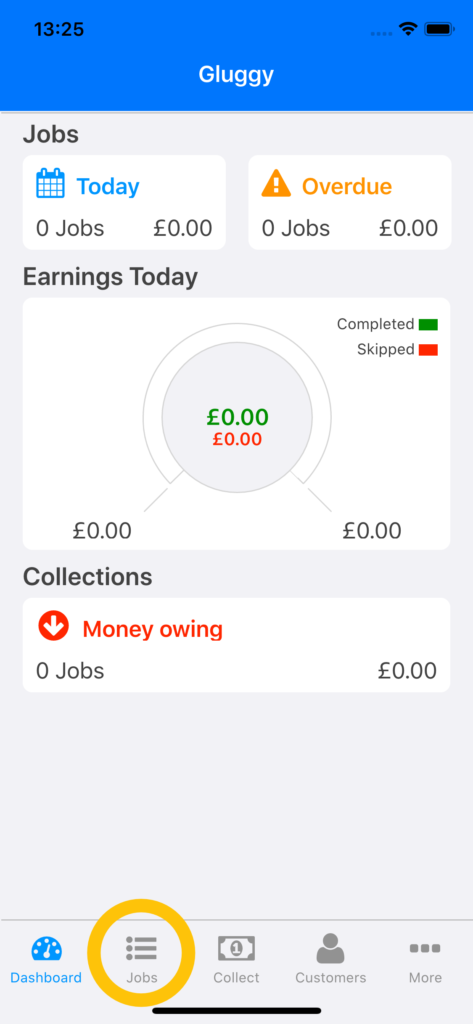
- Start Gluggy then tap the Jobs button on the Toolbar
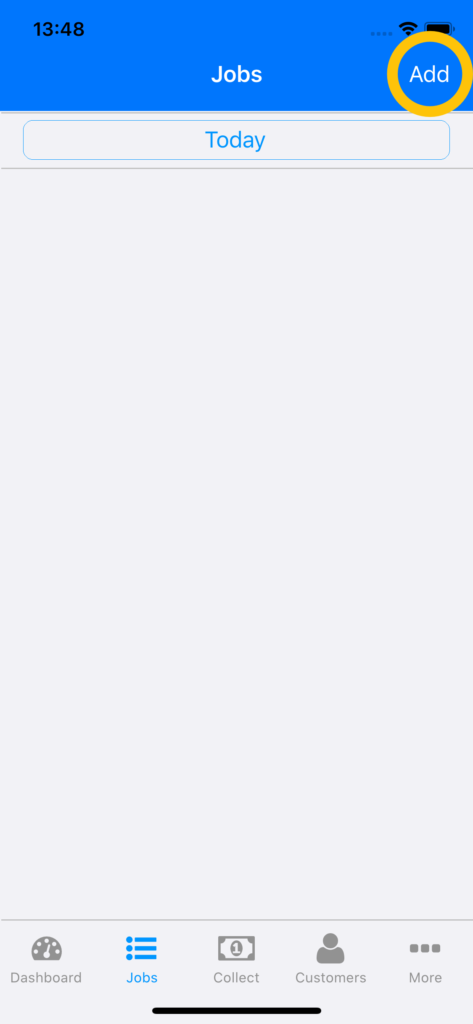
2. Tap the Add button in the top right of the screen
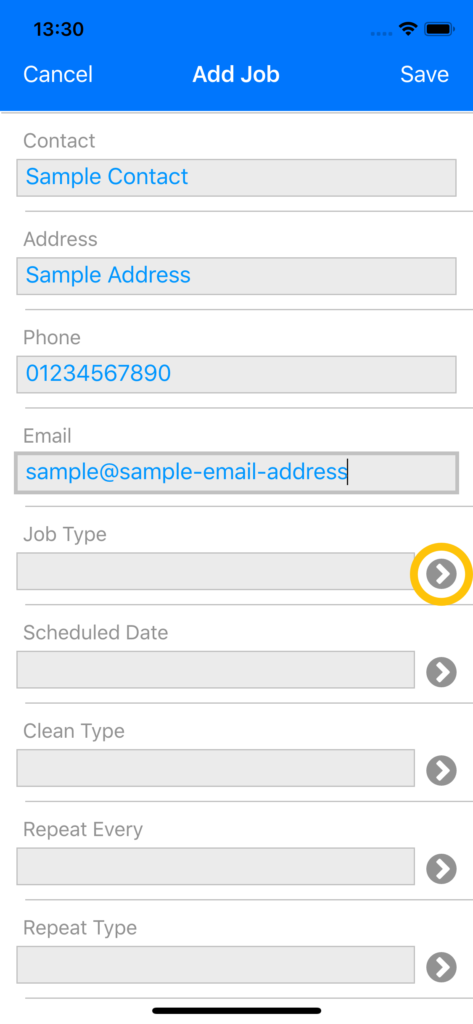
3. Fill out the Contact name, Address, Phone and eMail, then tap the Job Type button to choose the Job Type
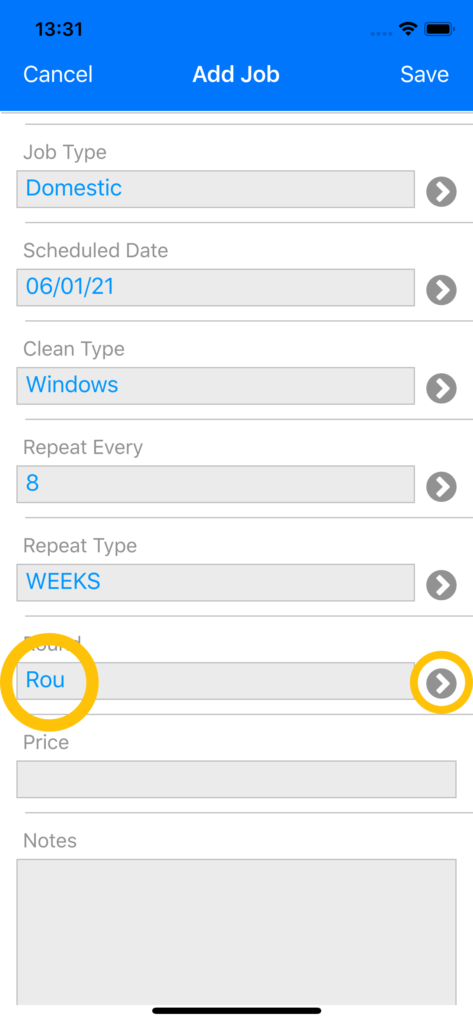
4. Choose the Clean Date, Clean Type and Repeat Period and then either type a new Round name in the Round field or tap the Rounds button to choose a Round. (If you type a new Round name in, it will be added to the Rounds list)
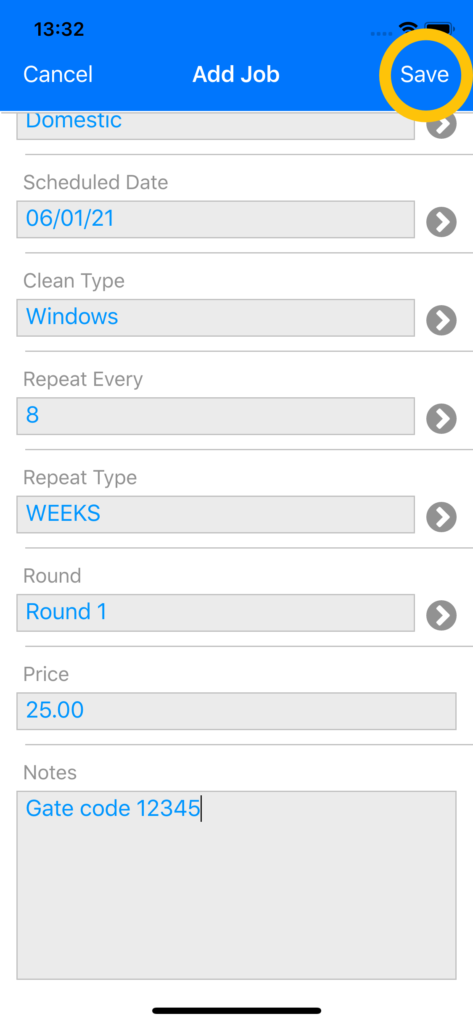
5. Complete the rest of the details for the job including the price, and add notes if required. Then tap the Save button in the top right of the screen to save the job.
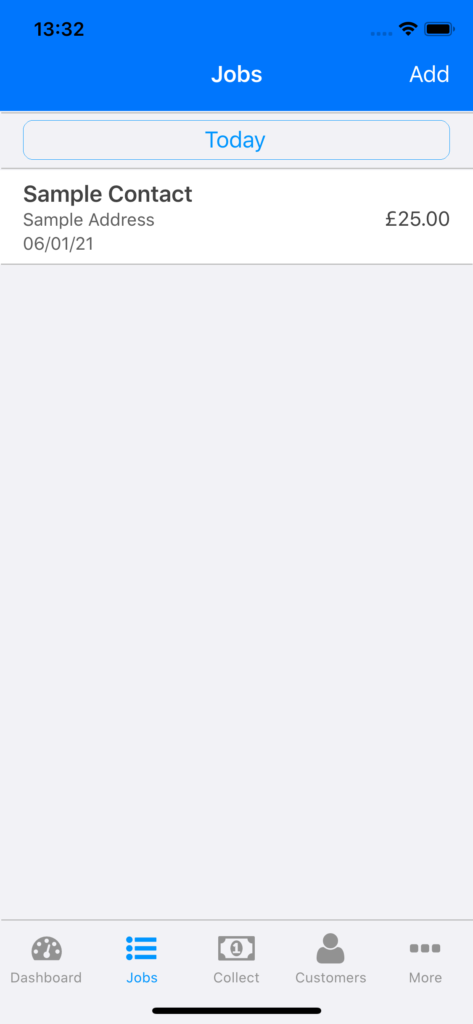
You will return to the Jobs screen. If you created a Job for the current date it will show here as indicated above.
If you created a job with a Clean Date different from today, just tap the Today filter button at the top of the Job list and choose an appropriate date filter to see your Jobs.